
AI Agents & Sessions
Understand Agent Permissions and YOLO Mode
By TermSquad · Last reviewed
YOLO mode asks a supported AI agent to start with a more permissive approval mode. Depending on the provider, it can bypass approval prompts or disable parts of the agent’s sandbox.
Use it only when you understand the selected agent’s behavior and the access available to its Linux user.
Change the launch preference
- Open Terminal as agent.
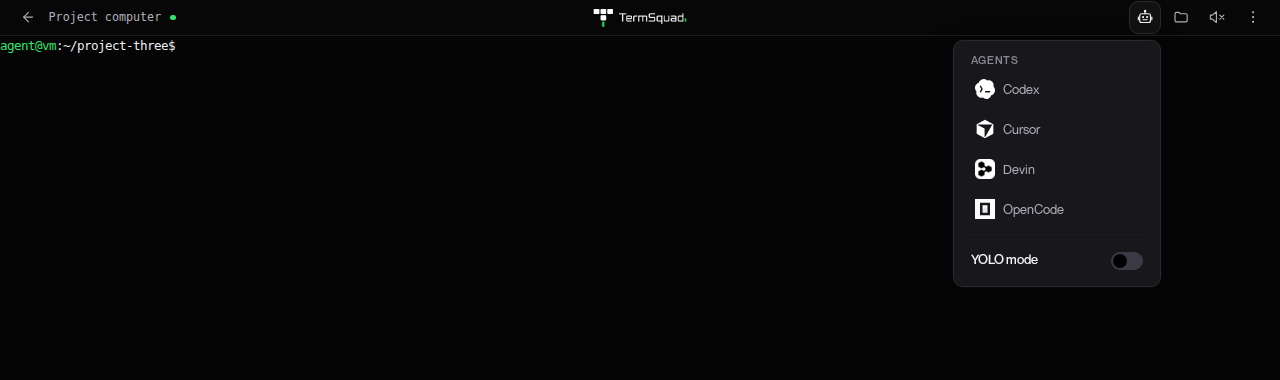
- Open the Agents menu.
- Set YOLO mode on or off.
- Launch the agent.
The setting is an account preference that can follow you across computers and devices. Check it before launching in a different project. Changing the switch does not retroactively reconfigure an agent that is already running.
Which permissions does it affect?
| Layer | What it controls |
|---|---|
| Agent approval mode | Whether the AI tool asks before particular actions. |
| Agent sandbox | Restrictions provided by that tool, when supported and enabled. |
| Linux user permissions | Which files and system actions the running process can access. |
| TermSquad Guard | Resource protection for workloads, separate from authorization. |
YOLO does not turn the Linux agent user into admin. Guard does not review whether a file change or network request is appropriate.
Why might a tool be disabled?
The launcher checks whether the installed version supports its configured YOLO flags. A tool with no supported YOLO mode may be unavailable while the switch is on. Turn it off and reopen the menu.
For a first task, keep normal approvals and read each requested action. See Run Your First AI Task and Configure TermSquad Guard.