Send the project
Your code, on the Mac.
Agents send your project to the Cloud Mac and skip recognized credential files and build output. Review what a project contains before it leaves your computer.
Filtered project syncCLOUD MAC
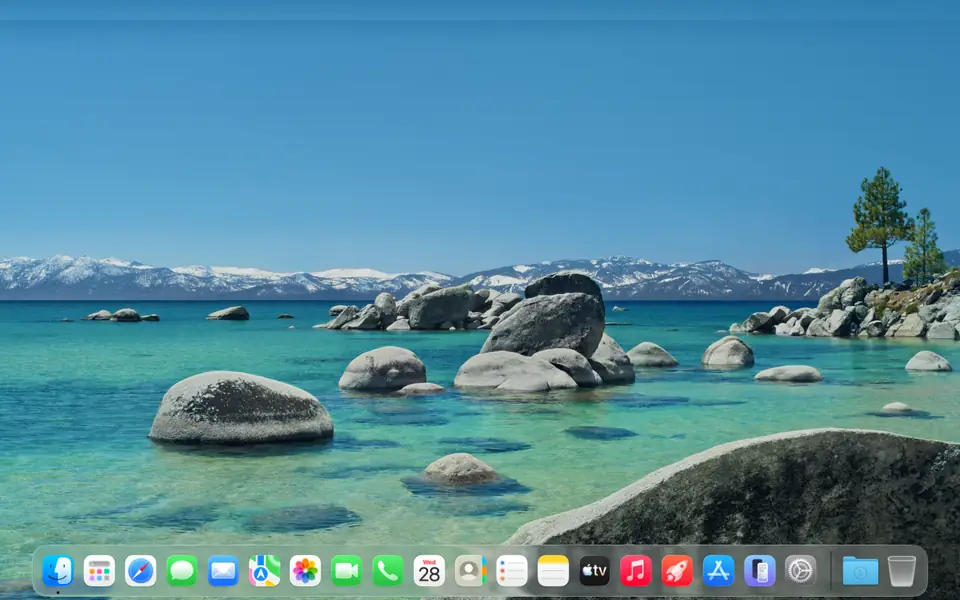
Some work needs macOS: Xcode builds, Mac apps, Apple tooling. Your agent starts a Cloud Mac, sends your project and runs the build, while you watch the desktop live beside the terminal. Step in whenever you want.
Requires a NoMac account. NoMac bills Mac usage directly; TermSquad adds no charge. Visit NoMac

⚙︎ Generating plists...
⚙︎ Generating project...
⚙︎ Writing project...
Created project at /Users/agent/workspace/termsquad-project/Habits.xcode
proj
agent@nomac termsquad-project % xcodebuild -scheme Habits -destination '
generic/platform=iOS Simulator' -derivedDataPath build build 2>/dev/null
| grep -E '^\*\* '
** BUILD SUCCEEDED **
agent@nomac termsquad-project %
Habits
Today
TermSquad’s Cloud Mac integration gives your AI agents a real macOS desktop from NoMac, directly from your TermSquad terminal. Agents send your project, run builds such as xcodebuild and use the desktop, while you watch live and can take control.
Why agents need a Mac
Apple development has always meant owning a Mac. With a Cloud Mac, your agents build and test Apple software from the same cloud computer where they write the code, and you can follow along from any device.
Agents send your project to the Cloud Mac and skip recognized credential files and build output. Review what a project contains before it leaves your computer.
Filtered project syncAgents run commands and long jobs such as xcodebuild, keep working while they run and read the output when they finish.
Commands + background jobsNative Mac tools let agents click, type, press shortcuts and scroll, then get a fresh screenshot of the result in the same step.
Act + screenshot in one stepBring your NoMac account. The Mac runs on NoMac’s infrastructure. NoMac bills its usage to your own account; TermSquad never buys credit for you.
How Cloud Mac works
After you connect NoMac, any agent on your computer can start a Cloud Mac for the project it is working on.
Connect your NoMac account once: paste your NoMac API key in Settings.
Ask your agent to start a Cloud Mac. It sends your project and runs builds or tests, and the Cloud Mac panel opens beside the terminal.
Watch the desktop live. Select Take control to use the Mac yourself. The session renews while your agents keep working.
⚙︎ Generating plists...
⚙︎ Generating project...
⚙︎ Writing project...
Created project at /Users/agent/workspace/termsquad-project/Habits.xcode
proj
agent@nomac termsquad-project % xcodebuild -scheme Habits -destination '
generic/platform=iOS Simulator' -derivedDataPath build build 2>/dev/null
| grep -E '^\*\* '
** BUILD SUCCEEDED **
agent@nomac termsquad-project %
Habits
Today
Step in, then hand it back. Select Take control to use the Mac yourself. Agent commands wait until you return control or close the panel, and a command that is already running finishes first.
Built into the terminal
While agents are actively working, TermSquad renews the session before it runs out, up to eight hours in total. Watching and screenshots do not keep it alive.
Closing the panel does not stop a paid session. Stop it from the panel, from Settings or by asking your agent.
Frequently asked questions
What you need, what it costs, how long sessions last and how control works.
Explore the documentationNo. The Cloud Mac runs on NoMac’s infrastructure. You and your agents reach it from the TermSquad terminal in any browser.
TermSquad adds no charge. You connect your own NoMac account, and NoMac bills Mac usage to that account. TermSquad never buys NoMac credit for you.
While your agents are actively working, TermSquad renews the session before it runs out, up to eight hours in total. Watching and screenshots do not count as work. If your NoMac credit runs out, the session cannot be extended and you get a warning to save your work.
It can send your project, run commands and long jobs such as xcodebuild, read their output and use the desktop: click, type, press shortcuts and scroll, with a fresh screenshot after each action.
Yes. Select Take control to use the desktop. Agent commands wait while you hold control, and closing the panel returns it.
No. Closing the panel does not stop a paid session. Ask your agent to stop it, select Stop in the panel or stop it from Settings.
Apple development, from any device
Build and test on macOS from your cloud computer. Watch from any browser.
Requires a NoMac account. NoMac bills Mac usage directly.
AI subscriptions and usage are not included.