
Computer Management
Reset Your Computer and Reinstall Ubuntu
By TermSquad · Last reviewed
Reset computer reinstalls Ubuntu and permanently removes the computer’s data. Use it when you intentionally want a fresh environment.
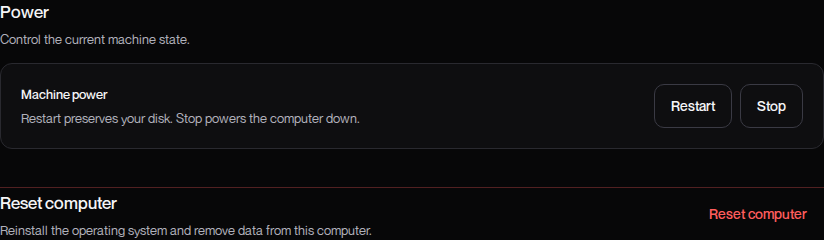
Reset is different from Restart, which preserves the disk, and Restore backup, which returns to an earlier disk copy.
Save what you need first
Copy important repositories, uncommitted files, databases, configuration, and memory exports outside the computer. Check that the copies are usable.
Provider logins and installed tools will need attention again after reset. Do not treat an existing provider backup as an undo button for the reset.
Reset the computer
- Select the correct computer.
- Open Settings and find Reset computer.
- Choose Reset computer.
- Read the confirmation explaining permanent data removal and Ubuntu reinstallation.
- Confirm only when you are ready to lose the existing environment.
- Wait for reset and setup to finish.
The reset dialog states that the action cannot be undone.
Set up the fresh environment
Once the computer is ready, check its current SSH access details, reconnect your AI tools and GitHub account, and restore your project copies. Import a separately saved memory export if needed.
A reset is a computer operation, not a subscription cancellation. Manage recurring billing separately in Billing.
If you only need to recover connectivity, start with terminal troubleshooting. Compare the options in What Happens to Your Data and Sessions?.