
Computer Management
Understand Backups and Recovery Limits
By TermSquad · Last reviewed
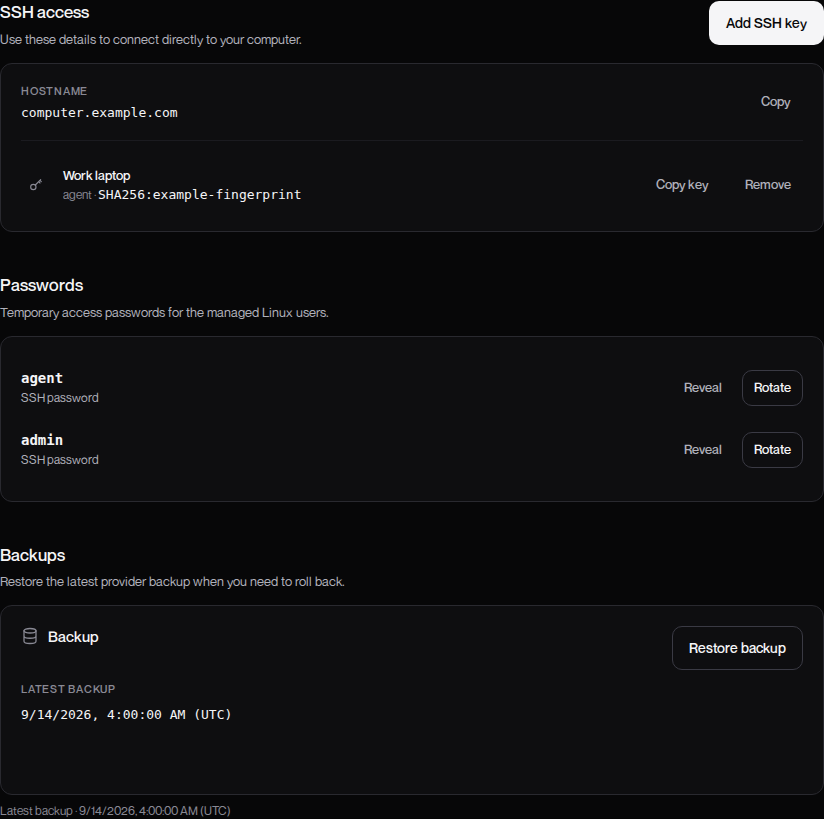
TermSquad exposes the latest available provider backup in Settings → Backups. A backup is a point-in-time recovery copy of the computer’s disk.
Do not assume a backup exists until the app shows one with a timestamp.
Check what is available
- Select the computer.
- Open Settings → Backups.
- Read the latest backup date and time.
- Compare it with the changes you would need to recover.
If the app says No automated backup is available yet, there is no backup currently offered for restoration. The interface does not provide arbitrary historical restore points or an on-demand snapshot button.
What does a restore recover?
A restore returns disk content to the backup’s state. Files, configuration, credentials, and shared memory can therefore move back in time. Changes made after the backup are not part of that copy.
A disk backup does not restore a live terminal process or guarantee that every application was captured in a transaction-consistent state. Databases may need their own backup procedure.
Keep another copy
Use a remote Git repository for committed code, and external storage for data that Git does not contain. Export shared memory if those observations matter for recovery.
Keep these copies outside the TermSquad computer. Do not rely on a provider backup remaining usable after the computer is reset or deleted.
Before proceeding, read Restore Your Computer from a Backup. For memory-specific recovery, see Understand Memory Storage and Recovery.