
Getting Started
Use TermSquad on Mobile
By TermSquad · Last reviewed
You can use TermSquad in a mobile browser to check your computer, work in the terminal, and review files. The work runs on the remote computer, so it does not depend on your phone’s processing power.
Open your work on a phone
- Sign in to the TermSquad app with the same email address.
- Select your computer.
- Open Terminal to return to its session.
- Use the mobile terminal controls for keys that the phone keyboard does not expose easily.
- Open Files when you want to inspect a document without navigating entirely through the terminal.
A landscape view or an external keyboard can make longer terminal work easier.
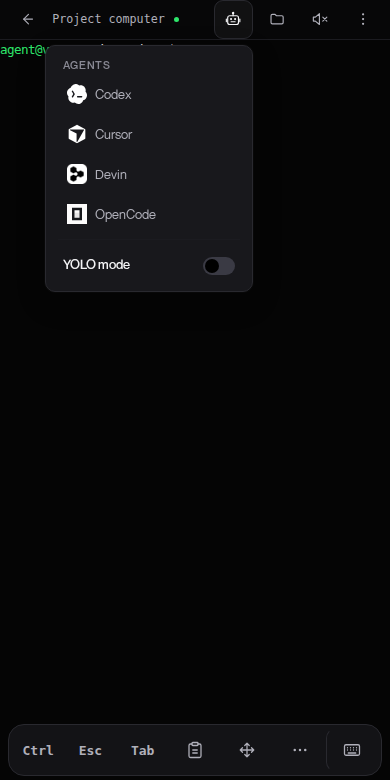
Attach files and photos
Select Attach files or photos in the mobile terminal toolbar, then choose Files or Photos. TermSquad uploads the selection to your computer and types its path into the focused terminal pane, so the agent you are talking to can use it. Use Paste from clipboard to paste text or a copied image the same way.
Attachments are available while the terminal is connected and no Files, Browser, iOS Simulator or Cloud Mac panel is open.
Add TermSquad to the home screen
On supported Android browsers, use the app’s install prompt or the browser’s installation menu. On iPhone, open the app in Safari, use Share, and choose Add to Home Screen.
TermSquad may show an installation suggestion in the mobile terminal. Availability depends on the browser and whether the app is already installed.
What happens when the phone locks?
A persistent agent session can keep running on the computer after the browser disconnects. Reopen the app and reconnect to see its current state.
Mobile browsers can suspend connections and audio in the background. Home-screen installation does not provide an offline terminal or guarantee background alerts. The remote computer still needs to remain running, and an agent waiting for permission still needs your answer.
Read Reconnect from Another Browser or Device and completion and permission alerts.