
Terminal & Remote Access
Open and Use the Web Terminal
By TermSquad · Last reviewed
Open Terminal in the TermSquad app to work directly on your selected computer. Commands run on that remote computer, not on the device displaying the browser.
Open a terminal
- Select a running computer in the dashboard.
- Choose Terminal.
- Wait for the connection indicator to show that the terminal is connected.
- Click or tap inside the terminal before typing.
For everyday work, use the agent user. To check your current account and location, run:
whoami
pwd
The first command prints the Linux user; the second prints the current directory. Use cd to enter your project folder before starting a tool.
Use the toolbar
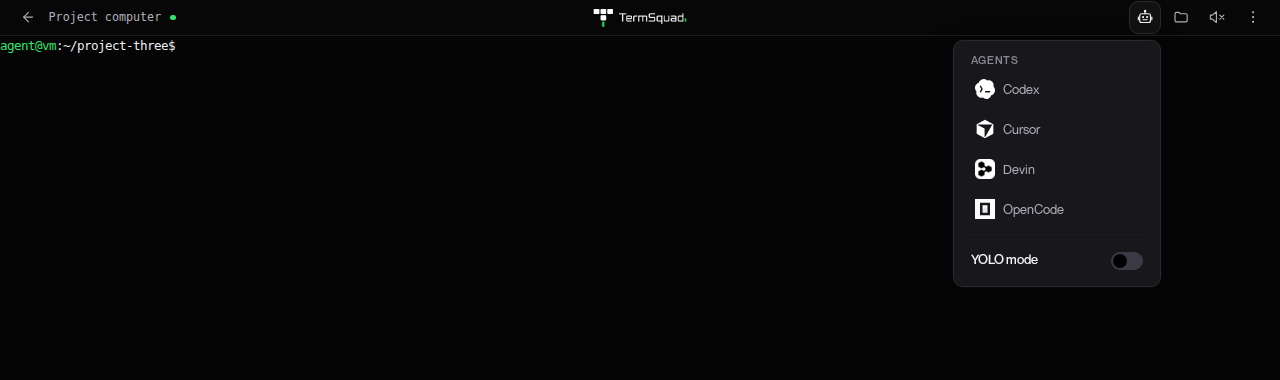
- Agents opens the launcher for installed agents when you are using the agent account.
- Files opens the file browser alongside your terminal.
- The sound control manages supported agent alerts.
- Terminal options contains Reconnect, the agent/admin user selector, and system usage.
- Back to overview returns to the dashboard.
A provider login flow may also show Open sign-in. Complete that flow before navigating away.
Leave and return
Closing the browser connection does not normally end work running inside Herdr. Reopen Terminal on the same computer and Linux user to return to that environment. Stopping the computer, rebooting, closing a pane, or ending the process has a different effect.
Use terminal tabs and shortcuts to organize work. If input stops responding, follow the web terminal troubleshooting guide.