
Account & Billing
Upgrade Your Computer’s Plan
By TermSquad · Last reviewed
Upgrade a computer from Billing → Upgrade plan. The app offers eligible higher plans and shows the charge before you confirm. The computer restarts when the new resources are applied.
Before upgrading
Save work and choose a suitable stopping point for active agents and services. The computer must be active, billing must be active, upgrades must be available, and cancellation must not be scheduled.
The highest plan has no larger option.
Review and confirm
- Select the intended computer and open Billing.
- Expand Upgrade plan.
- Choose Upgrade for the target plan.
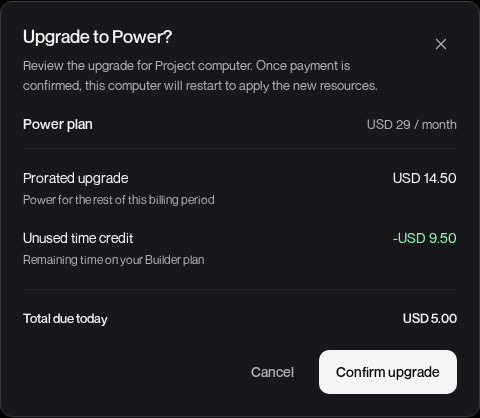
- Review Prorated upgrade, Unused time credit, any Taxes and other adjustments, and Total due today.
- Check the new recurring monthly price.
- Select Confirm upgrade.
- Complete any further payment step.
- Wait for the new resources and restart to finish.
The quote expires after five minutes. If it expires, refresh it and review the latest amount before confirming.
If payment remains pending
The app shows Complete your upgrade payment and a payment action. Your current plan stays active while that upgrade payment is pending.
Payment confirmation and application of resources are separate stages. Do not submit another upgrade just because the computer still shows the old resources immediately after payment.
Verify the result
Check Current plan and the computer’s resources after it becomes available. Restart any project processes that did not return automatically.
See payment or upgrade troubleshooting and data and session effects.