
AI Agents & Sessions
Monitor Agent Activity and Status
By TermSquad · Last reviewed
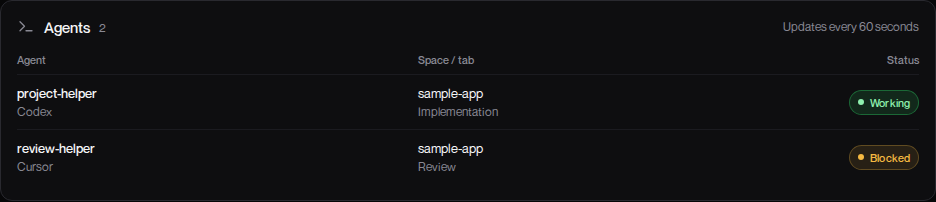
The Agents card on Overview shows agent activity reported by Herdr on the selected computer. It helps you find a task and see whether it may need attention.
Understand the status
| Status | Meaning |
|---|---|
| Working | Herdr reports that the agent is working. |
| Idle | Finished or waiting for input, and already seen in Herdr. |
| Blocked | Waiting for input, approval, or a decision. |
| Done | Finished and not yet seen in Herdr. |
| Unknown | Herdr cannot determine the agent’s state. |
“Done” and “Idle” describe observed activity. Neither proves that the requested change is correct or that tests passed.
Find a task
- Select the computer and open Overview.
- Find the agent in the Agents card.
- Note its Space / tab and status.
- Open Terminal and navigate to that workspace and tab.
- Read its output or answer the pending question.
The card refreshes about every 60 seconds. It is a status summary, not a live transcript.
Why might the card disappear?
The card is hidden when the computer is not active, there are no reported agents, or the snapshot is stale. Missing status is not proof that an agent has stopped.
Agents without compatible detection may run without appearing here. Check the terminal before relaunching or terminating work.
See missing agents or alerts and completion and permission alerts.