
Computer Management
Start, Stop, and Restart Your Computer
By TermSquad · Last reviewed
Use Settings → Power to start, stop, or restart the selected computer. These controls affect the entire computer and its running processes.
Choose the right action
| Action | Result |
|---|---|
| Restart | Reboots the computer while preserving its disk. Running processes are interrupted. |
| Stop | Powers the computer down. Disk data remains while the computer is retained. |
| Start | Powers on an eligible stopped computer. Previous processes are not restored. |
Stopping the computer does not cancel its subscription or pause recurring billing.
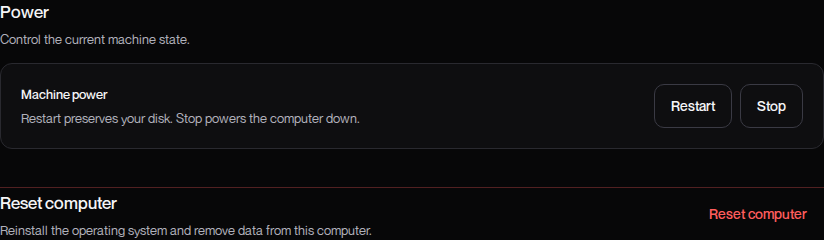
Perform a power operation
- Select the correct computer.
- Save files and finish or stop important work.
- Open Settings → Power.
- Choose Restart, Stop, or Start, as available.
- Wait for the operation and status change.
- After starting or restarting, reconnect and check your project services.
Do not assume a disconnected browser means the power operation failed. Reopen the dashboard and check the machine state.
If Start is not enough
A computer stopped because its paid subscription ended may need Reactivate billing in Billing. A suspended computer also needs its underlying billing issue resolved.
Controls can be disabled while an upgrade or another machine operation is underway. Read the displayed reason and let it finish.
For data effects, see What Happens to Your Data and Sessions?. For stopped subscriptions, read Reactivate Billing for a Stopped Computer.