
Getting Started
Find Your Way Around the Dashboard
By TermSquad · Last reviewed
The TermSquad dashboard is organized around the computer you have selected. Check the computer selector before opening a terminal, editing files, or changing settings.
Main navigation
| Page | Use it to |
|---|---|
| Overview | Check the selected computer, installed AI tools, and reported agent activity. |
| Terminal | Work in the browser terminal and open an AI agent. |
| Files | Browse, upload, download, and edit files on the computer. |
| Metrics | Inspect resource usage, services, and workloads. |
| Billing | Manage the selected computer’s plan and subscription, or open Stripe. |
| Settings | Rename the computer, manage access and tools, configure Squad, and perform computer operations. |
The computer selector also provides Add new machine. Each added computer has separate files, settings, and billing.
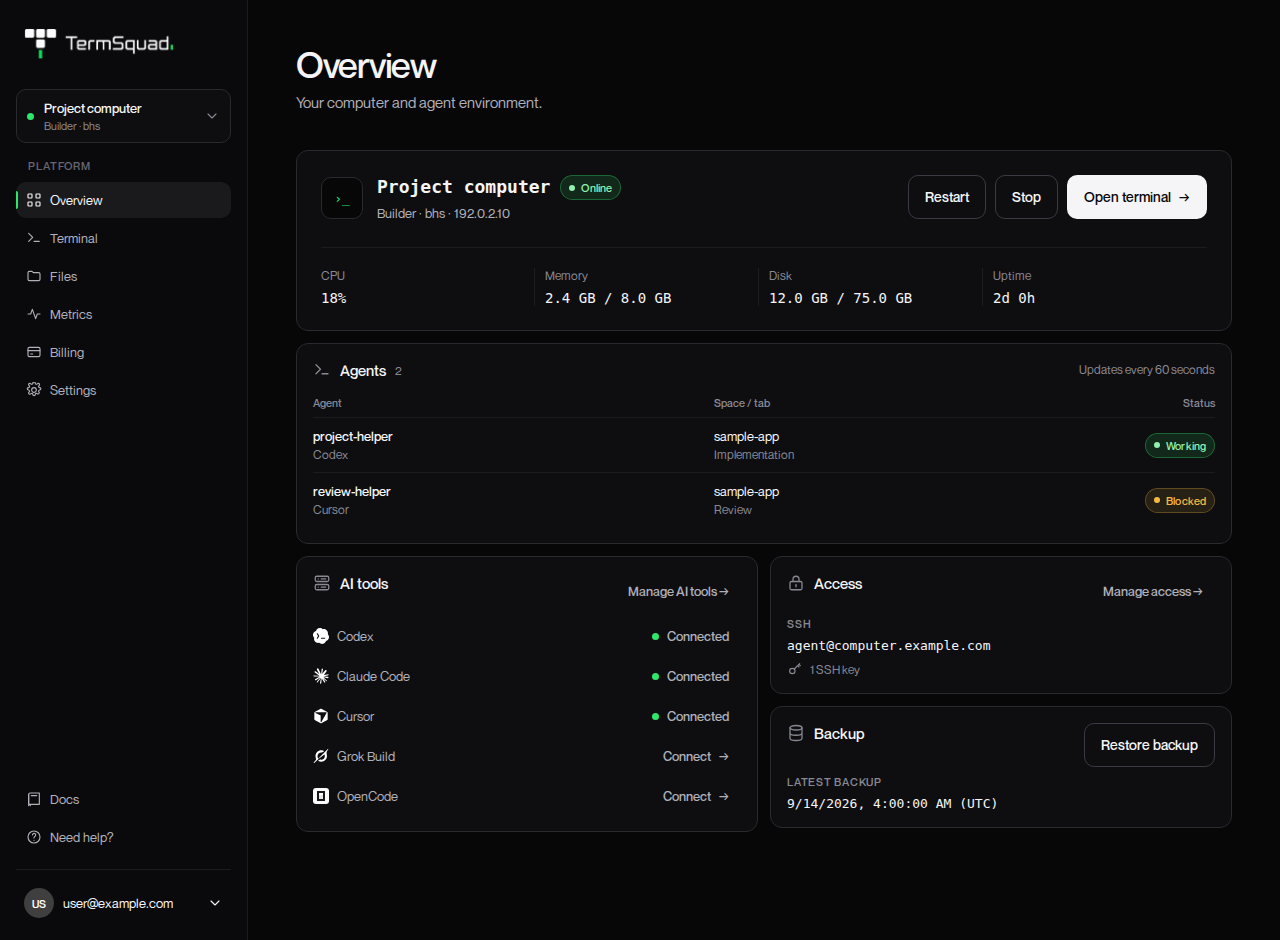
A useful daily workflow
- Select the computer that holds your project.
- Check Overview for its status.
- Open Terminal and return to your project or agent session.
- Use Files to inspect output.
- Open Metrics if work slows down.
For help, use the documentation link or Need help? in the sidebar. The account menu contains Report a bug and Sign out.
Why is an action unavailable?
Controls depend on the computer’s state. Setup, a stopped computer, an operation in progress, or a temporary connection problem can make an action unavailable. Read the status message before retrying.
See computer status and availability and adding or switching computers.