
Squad & Shared Memory
Configure Automatic Delegation
By TermSquad · Last reviewed
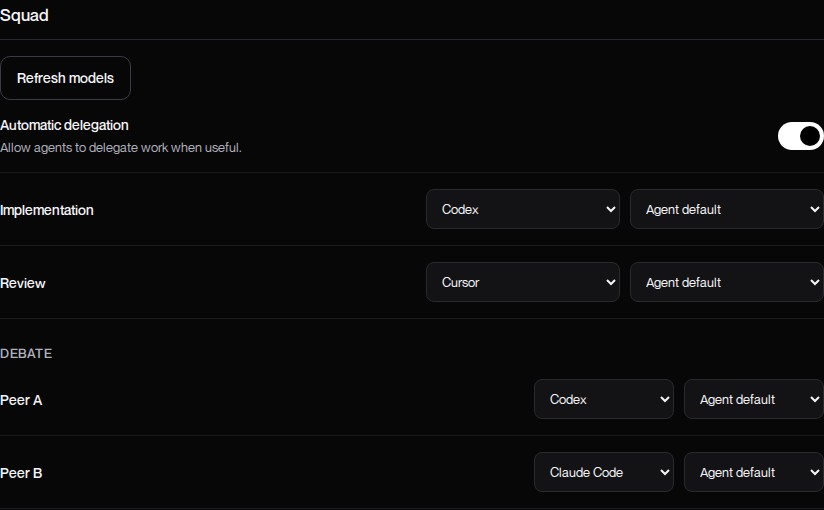
Automatic delegation controls whether agents may use Squad on their own initiative when it is useful. Configure it for the selected computer under Settings → Squad.
Change the setting
- Select the computer you want to configure.
- Open Settings and find Squad.
- Set Automatic delegation on or off.
- Select Save changes.
- Wait for the save result before relying on the new preference.
Turning the switch without saving does not finish the configuration.
What does each option mean?
- On: agents may delegate suitable work. It does not mean every request needs multiple agents.
- Off: agents should work locally unless you explicitly request Squad or a debate.
A direct instruction such as “Do this yourself without delegation” applies to that task even if automatic delegation is on.
Will it stop existing agents?
Changing this preference governs delegation decisions. It is not a stop button for already running workers. Return to the relevant session if you need to interrupt work.
If a required implementation or review role is set to Ask when orchestrating, the lead can ask you to choose an agent when that role is actually needed. A solo task should not require role selection.
Check the outcome
After saving, explain the intended workflow in your next request. If delegation fails, check the role selection and the agent’s connection state before toggling the setting repeatedly.
See Choose Agents and Models for Squad Roles and Squad Can’t Delegate or Find a Model.