
Terminal & Remote Access
Connect with SSH
By TermSquad · Last reviewed
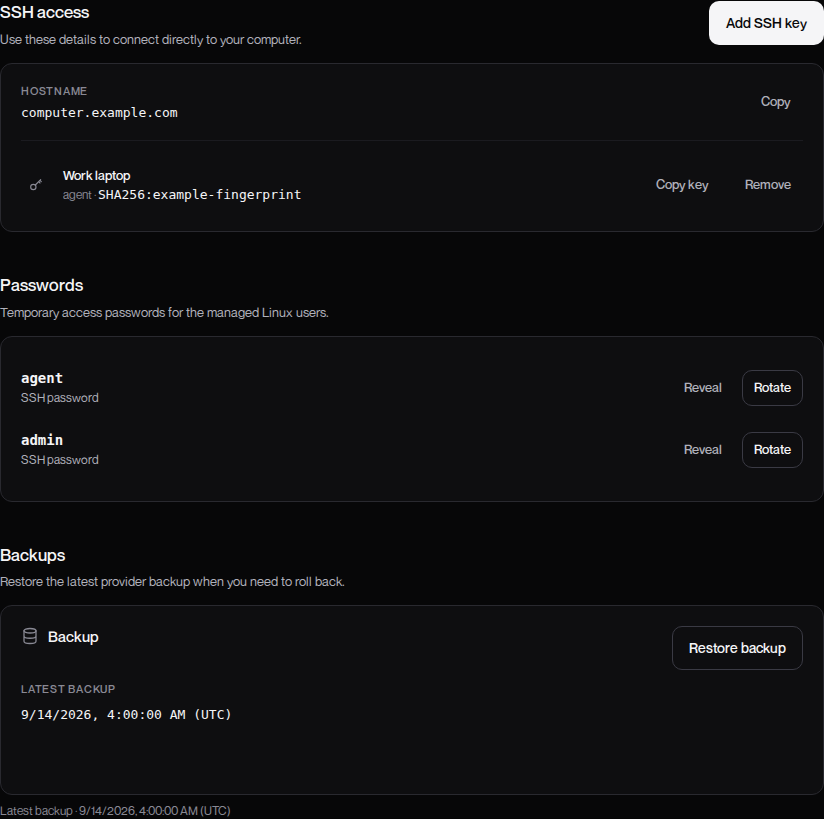
To connect with SSH, use the hostname shown in Settings → SSH access and credentials for either the agent or admin Linux user.
Get the connection details
- Select the computer and confirm it is running.
- Open Settings → SSH access and copy Hostname.
- Add a public SSH key for your chosen user, or reveal that user’s password under Passwords.
For project work, choose agent. Account email codes do not work as SSH passwords.
Connect from your own device
Open your local terminal and replace YOUR_HOSTNAME with the hostname from Settings:
ssh agent@YOUR_HOSTNAMEIf you use a private key at a custom path:
ssh -i ~/.ssh/termsquad_ed25519 agent@YOUR_HOSTNAMEOn the first connection, SSH asks you to trust the server’s host key. Confirm you are connecting to the intended computer; do not bypass a changed-key warning without checking why it changed.
After authentication, run whoami and pwd to confirm where you are. The connection syntax is documented in the OpenSSH manual.
Return to persistent work
An ordinary SSH shell and the browser’s Herdr session are different contexts. Inside the computer, use herdr session list to find existing sessions, then herdr session attach SESSION_NAME with the listed name. Do not start another copy of an agent just to look for an existing task.
If authentication fails, follow I Can’t Connect with SSH. For access setup, see Add and Remove SSH Keys.