
AI Agents & Sessions
Start an Agent from the Terminal Menu
By TermSquad · Last reviewed
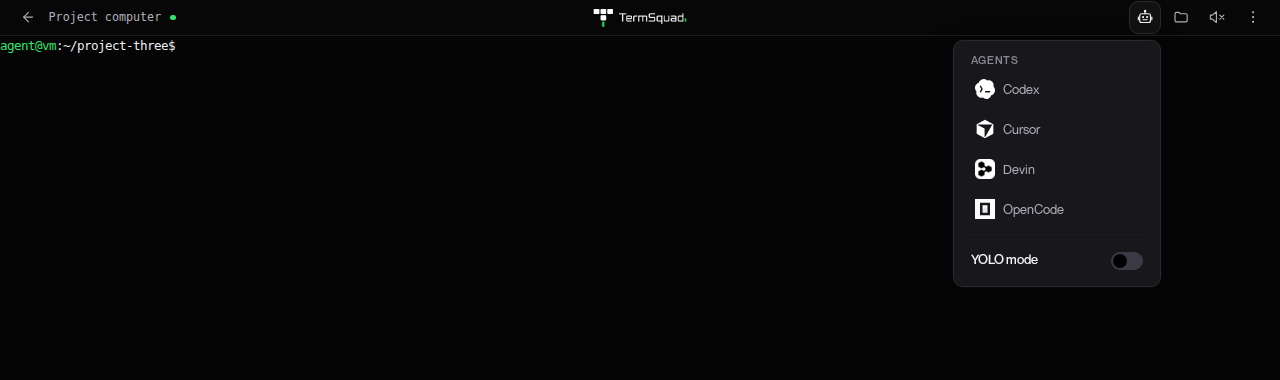
The Agents menu starts an installed, supported agent from the web terminal. It is available in the agent terminal, not the admin terminal or a provider login terminal.
Launch an agent
- Select your computer and open Terminal.
- Confirm that the connection is active and the Linux user is agent.
- Enter the project folder you want the agent to work in.
- Finish or clear any partially typed shell command.
- Open Agents in the toolbar.
- Review YOLO mode and leave it off unless you intend to use that permission mode.
- Select an available agent.
- Wait for it to start before entering your request.
The menu refreshes the installed-agent information when opened.
Where does the agent start?
At a verified empty shell prompt, the launcher can use the current pane. If the pane is occupied, supported runtimes start the agent in a new tab. If the runtime cannot safely identify or use the target, the menu shows an explanation.
Check the resulting terminal before retrying a launch that could not be confirmed. This avoids starting duplicate tasks.
Why is a tool unavailable?
The tool may need installation, the runtime may not support launching that version, or YOLO mode may be unavailable for it. Turn YOLO off if the menu identifies it as the reason.
If the active pane changed while the menu was open, close and reopen Agents so the target can be refreshed.
See Install and Connect an AI Agent and Agent Permissions and YOLO Mode.