
Computer Management
Manage Herdr Automatic Updates
By TermSquad · Last reviewed
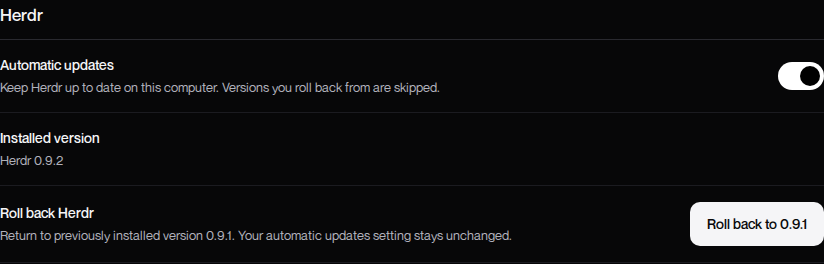
Control Herdr updates under Settings → Herdr → Automatic updates. The preference applies to the selected computer and is enabled by default.
Change automatic updates
- Select the computer.
- Open Settings and find Herdr.
- Review Installed version.
- Toggle Automatic updates.
- Wait for the operation to finish and check for an error.
This Herdr toggle saves directly. It is separate from the Save changes button used for Squad and Guard settings.
What happens when updates are on?
TermSquad can deliver eligible Herdr updates through its managed update process. An update can be deferred while running sessions prevent a safe switch.
A queued or deferred update does not mean the displayed installed version has already changed. Wait for the computer to report the installed result.
What happens when updates are off?
The preference stops automatic Herdr updates for this computer. It does not freeze Ubuntu packages, project dependencies, AI tools, or every managed TermSquad component.
If you roll back Herdr, the version you rolled back from is skipped by automatic updates. The rollback does not change the automatic-updates preference itself.
If the version does not change
Read the operation message and check whether sessions or another machine operation are delaying it. Do not close important work without saving it just to clear a pending update.
See Roll Back Herdr to a Previous Version and update troubleshooting.