
Computer Management
Roll Back Herdr to a Previous Version
By TermSquad · Last reviewed
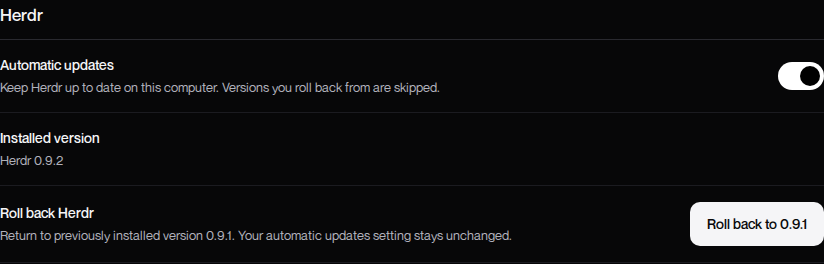
If an eligible earlier Herdr version is available, Settings → Herdr offers a rollback to that version. This changes Herdr, not the computer’s entire disk.
Request a rollback
- Save important work and select the correct computer.
- Open Settings → Herdr.
- Read Installed version and the target shown under Roll back Herdr.
- Select Roll back to [version].
- Watch the operation message until the installed result is verified.
Only a previously installed, eligible version is offered. The control is not a picker for any historical Herdr release.
Understand the operation state
The app can show queued, running, checking, deferred, succeeded, or failed progress. A deferred message means running Herdr sessions are delaying the switch and TermSquad will retry.
Read the message before trying again. A network error can leave the request’s outcome uncertain, so check the reported operation rather than submitting unrelated recovery actions.
What happens to automatic updates?
Your automatic-updates setting stays unchanged. TermSquad skips the version you rolled back from so automatic updates do not immediately put the computer back on that version.
Rollback does not restore deleted files, reverse an AI agent’s edits, or recover a stopped process.
If rollback is unavailable
The section explains the reason, such as missing eligible history or another operation in progress. Preserve the error and versions when contacting support.
See Herdr automatic updates and stuck operation troubleshooting.