
Files & Projects
Browse and Organize Files and Folders
By TermSquad · Last reviewed
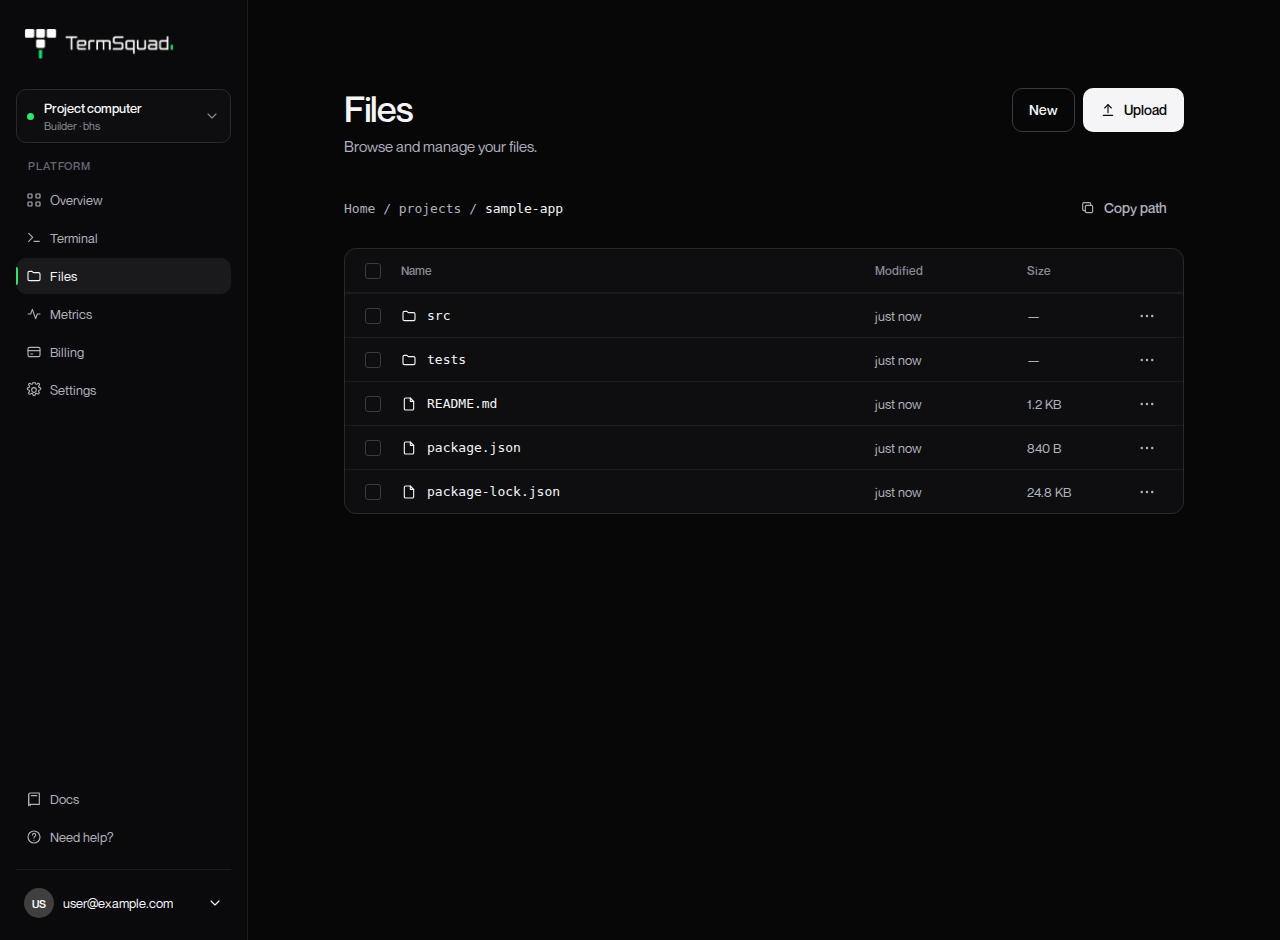
Open Files to browse the selected computer’s agent home directory and organize your project files. You can also open Files from the terminal toolbar.
Find a folder
- Select the correct computer.
- Open Files.
- Click a folder name to enter it.
- Use the breadcrumb above the list to return to a parent folder.
The browser is rooted in the agent user’s home area. It is not a full administrative file manager for the entire Ubuntu filesystem.
Create and rename items
Use New → New folder or New → New file. Enter the name in the inline field and confirm it. Create an item in the folder where you want it to live.
For an existing item, open its actions menu and choose Rename. Use Copy path when you need to refer to that exact location in a terminal command or agent request.
Renaming a file can affect imports or scripts that reference its old name; check those references when working in a project.
Delete files or folders
Select the item or items, choose Delete, and read the confirmation. A folder deletion also removes its contents. The file browser does not provide a trash-based undo workflow.
If an agent is changing the same folder, coordinate before deleting or renaming files. The listing refreshes, but it does not resolve conflicting project work for you.