
Files & Projects
Edit Code and Text Files
By TermSquad · Last reviewed
TermSquad’s file viewer includes an editor for supported text and code files. Changes remain unsaved until you select Save.
Edit and save a file
- Select the computer and open Files.
- Navigate to the file and open it.
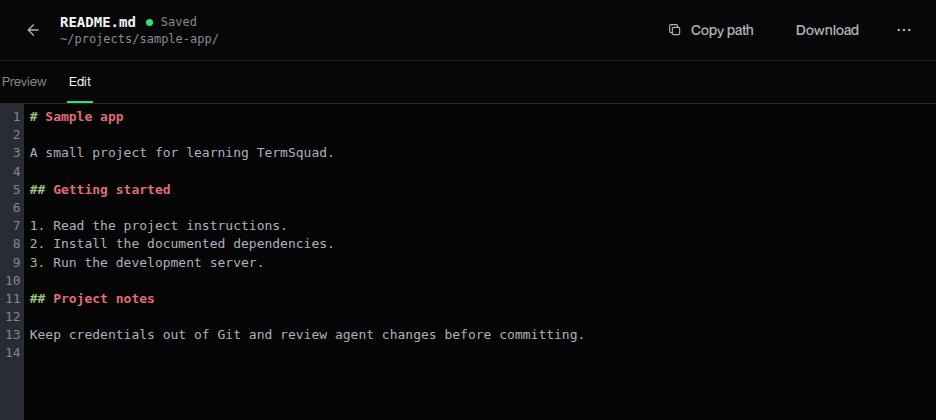
- For Markdown, choose the Edit tab.
- Make your changes.
- Check the Unsaved changes indicator.
- Select Save and wait for Saved.
Cancel discards your current edits in the viewer. If you navigate away with unsaved changes, read the warning rather than assuming the file was saved automatically.
If someone else changed the file
An agent, terminal command, or another editor can modify the same file while it is open. TermSquad checks the file revision when saving and can show a conflict dialog.
- Cancel: return without resolving the conflict.
- Reload file: load the remote version, discarding your unsaved edits.
- Overwrite: replace the remote version with your current editor content.
Copy important unsaved text somewhere safe before resolving a conflict. Inspect both versions when both contain useful work; the dialog does not perform a code merge for you.
Editing limits
Text preview and editing currently support files up to 1 MiB. Binary files and unsupported types use a download fallback.
Saving code is not the same as checking that it works. Run the project’s relevant formatter, tests, or build afterward.
See file previews and file troubleshooting.