
Files & Projects
Upload and Download Files
By TermSquad · Last reviewed
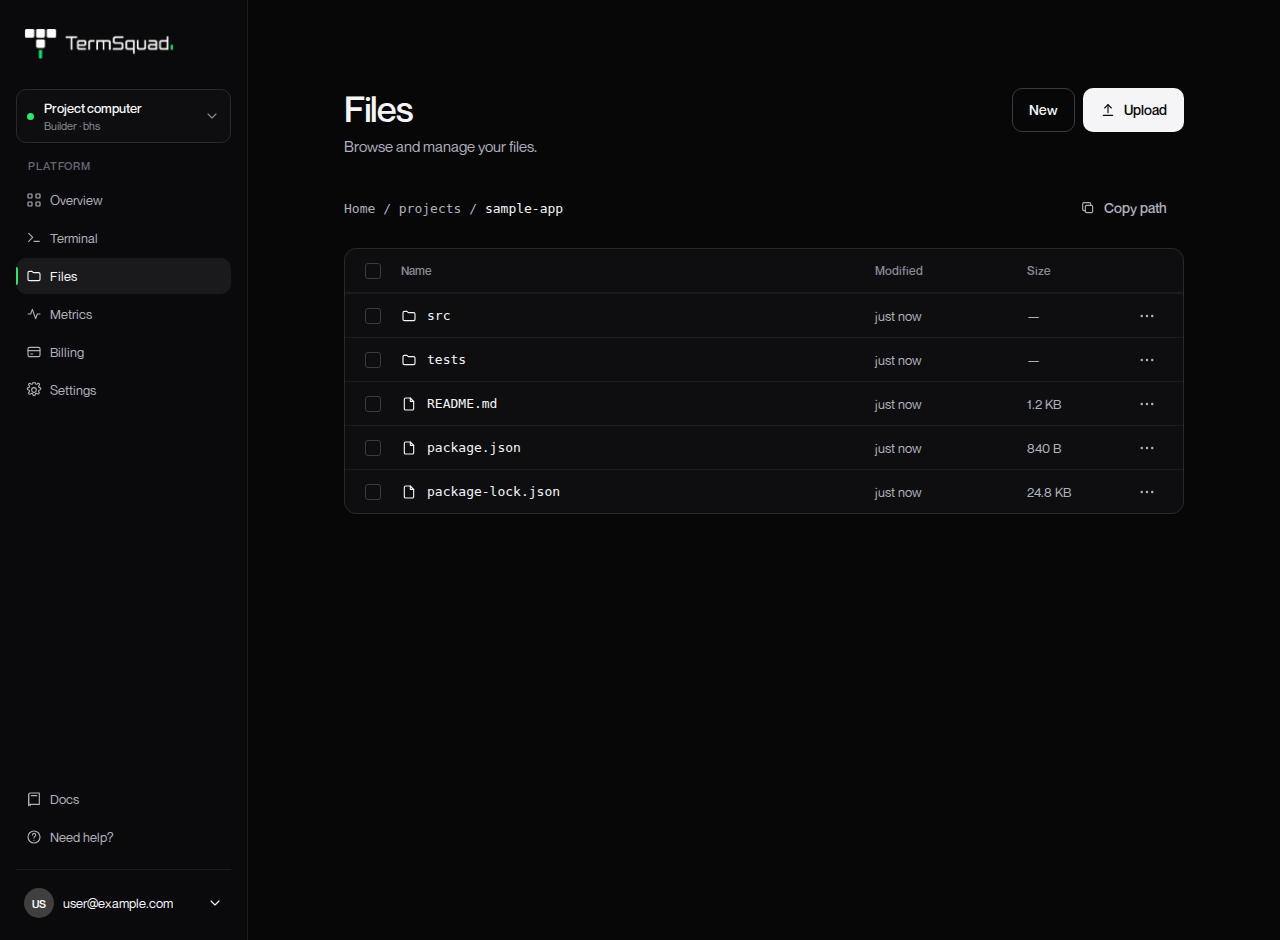
Use Upload in Files to copy files from your device to the selected computer. Use a file’s Download action to copy it back to your device.
Upload files
- Select the computer and open Files.
- Enter the destination folder.
- Choose Upload and select one or more files, or drag files into the Files area.
- Watch the upload progress.
- Check that each file finished successfully and appears in the folder.
Do not assume the whole selection succeeded because one file reached 100%. Transfers report results per file.
If a filename already exists, the upload can be rejected. Rename the incoming file or deliberately manage the existing copy first; do not delete useful data just to dismiss the conflict.
Download files
Open a file’s actions menu and choose Download, or use Download in the file viewer. You can also select downloadable files and use the selection’s download action.
Check your browser’s download location and any permission prompt for multiple downloads. Save edits before downloading if you want the newest version stored on the computer.
What about folders or large transfers?
The browser’s download action is for files. A selected folder does not become an automatic ZIP archive.
For a whole project, use version control, archive the folder into a file before downloading, or use an SSH-based transfer tool. Keep an external copy of data you would need after a computer reset or deletion.
See SSH access, backup limits, and file transfer troubleshooting.